> ## Documentation Index
> Fetch the complete documentation index at: https://docs.phospho.ai/llms.txt
> Use this file to discover all available pages before exploring further.
# Manipulate LeRobot datasets
> How to repair, merge, split and delete LeRobot datasets
You just recorded a LeRobot dataset with your robot. Maybe you also downloaded a dataset from the HuggingFace hub. With phospho, you can:
* repair corrupted datasets
* merge two datasets into one
* split a dataset into multiple datasets (e.g. training/validation/test sets)
* delete episodes from a dataset
## Prerequisites
You need to install the phosphobot software on your computer. If you haven't done it yet, follow the [installation guide](/installation).
```bash macOS theme={null}
curl -fsSL https://raw.githubusercontent.com/phospho-app/phosphobot/main/install.sh | bash
```
```bash Linux theme={null}
curl -fsSL https://raw.githubusercontent.com/phospho-app/phosphobot/main/install.sh | sudo bash
```
```powershell Windows theme={null}
powershell -ExecutionPolicy ByPass -Command "irm https://raw.githubusercontent.com/phospho-app/phosphobot/main/install.ps1 | iex"
```
```bash uv (Linux and macOS) theme={null}
# Install uv: https://docs.astral.sh/uv/
curl -LsSf https://astral.sh/uv/install.sh | sh
# Run phosphobot
uvx phosphobot@latest run
```
```powershell uv (Windows) theme={null}
# Install uv: https://docs.astral.sh/uv/
powershell -ExecutionPolicy ByPass -c "irm https://astral.sh/uv/install.ps1 | iex"
# Run phosphobot
uvx phosphobot@latest run
```
For any of this operations, go to the dashboard and click on the `Browse Datasets` tab. Then move to the `lerobot_v2.1` folder.
You will see all your local datasets. To download a dataset from the HuggingFace hub, click on the `Add from hub` button. It will be downloaded and added to your local datasets.
## Repair a dataset
Select a dataset and click on the `Repair Selected Dataset` button. This will check that your dataset is valid and fix common LeRobot issues.
## Merge two datasets
Select two datasets and click on the `Merge Selected Datasets` button. This will merge the two datasets into a single dataset.
For now, you can only merge two local datasets at a time. If you need to merge more, you can do it recursively.
## Split a dataset
Select a dataset and click on the `Split Selected Dataset` button. This will split the dataset into two datasets.
## Delete a dataset
Select a dataset and click on the `Delete Selected Dataset` button. This will delete the dataset from your local datasets.
## Upload the dataset back to HuggingFace
Click the 3 dots on the right of the dataset and select `Push to Hugging Face Hub`. This will upload the dataset to your HuggingFace account.
## Visualize your dataset
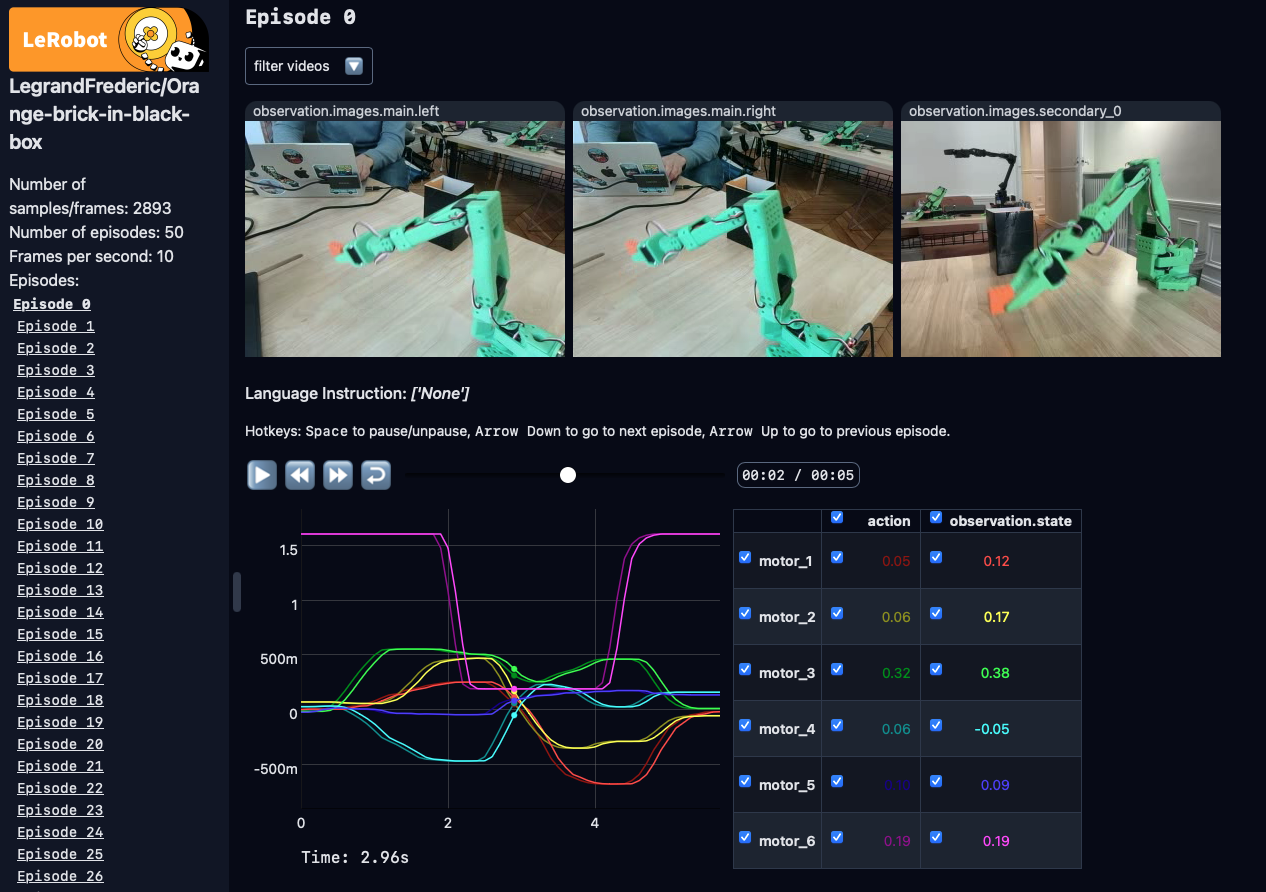
Once your dataset is uploaded to HuggingFace, you can view it using the [LeRobot Dataset Visualizer](https://huggingface.co/spaces/lerobot/visualize_dataset). This will also check that your dataset is valid.
The dataset visualizer only works with the `AVC1` video codec. If you used
another codec, you may see black screens in the video preview. Preview
directly the videos files in a video player by opening your recording locally:
`~/phosphobot/recordings/lerobot_v2/DATASET_NAME/video`.
Looking good? You're ready to train your AI model!
# What's next
How to train an AI model from a dataset you recorded